
What’s new in Empi
Thoughtful improvements to make room for what matters.
New
See what's new, right where you work
Discover the latest improvements without leaving Empi, and revisit earlier updates whenever you need them.
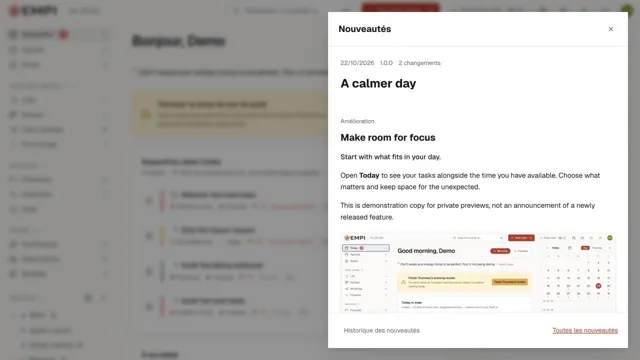
Empi now brings product updates into your workspace. The What's new icon shows how many changes in the latest available release you haven't opened yet. Open it to read a short recap, see useful screenshots and find out what each improvement means for you.
Browse earlier releases from the panel's history, or visit What's new on the Empi website. Updates load in pages, so the history stays easy to browse as it grows. You can enlarge screenshots for a closer look and return to your work when you're done.
Improved
Legal information within reach
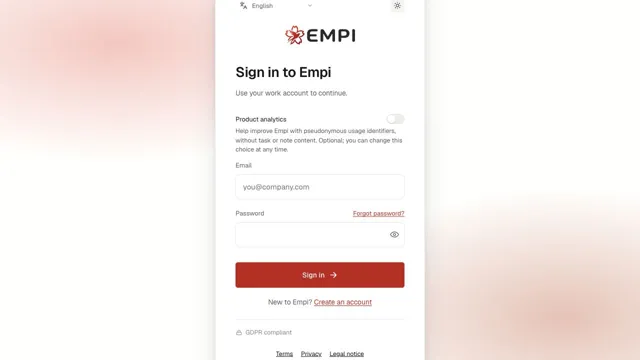
Open Empi’s terms, privacy policy and legal notice from sign-in or Settings.
Read Empi’s terms, privacy policy and registered operator details directly from the sign-in screen or Settings. French users open the French documents; other languages open the English versions.
Product emails also identify EMPI and its registered business address, with a direct legal notice link alongside the existing privacy, preference and unsubscribe links.
Find product updates at a glance
Browse updates by date, explore New, Improved and Fixed sections, and jump straight to what matters.
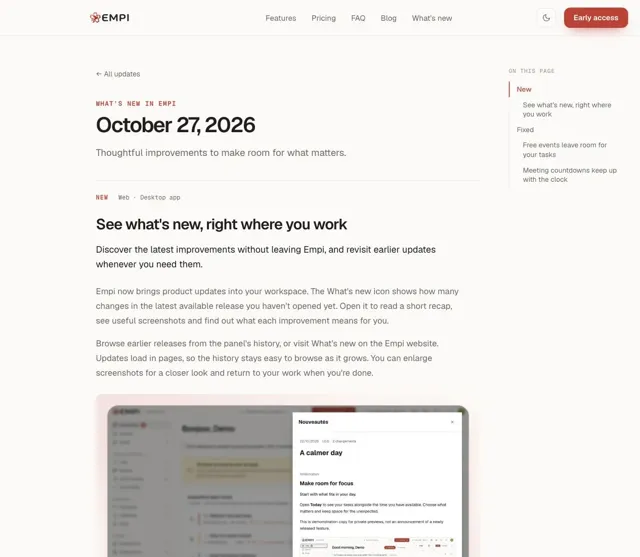
The What's new history brings product updates together in compact cards, identified by their publication date.
Open an update to explore its New, Improved and Fixed sections. On the website, the On this page navigation follows your progress and links directly to each announcement. Product updates stay in English, including dates, categories and platform labels.
In the app, open What's new from the top-right corner to read the dated recap, revisit earlier updates and enlarge screenshots. If no announcement is available yet, use Refresh updates to check again.
A cleaner booking editor
Set booking limits and guest questions with consistent, aligned form controls.
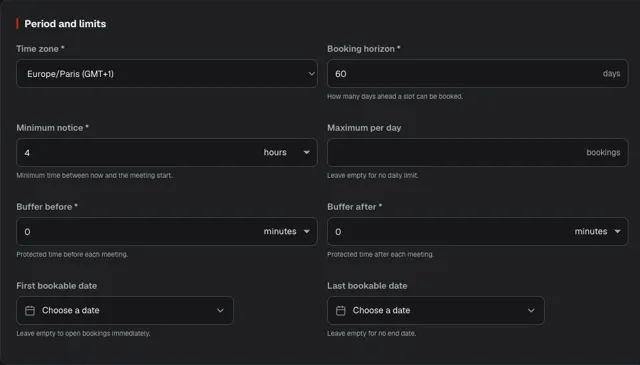
Booking settings are easier to scan. Notice periods, buffers, the booking horizon and the daily limit use a single outline around each value and its unit, with consistent heights and clear keyboard focus.
In the guest form, question labels and answer-type selectors now share the same height and typography. On narrower screens, question controls wrap onto separate rows while keeping the reorder and delete actions accessible.
Open Bookings, choose a booking type, then use Availability or Guest form to edit these settings. Your existing values and booking rules stay the same.
Resize calendar blocks directly
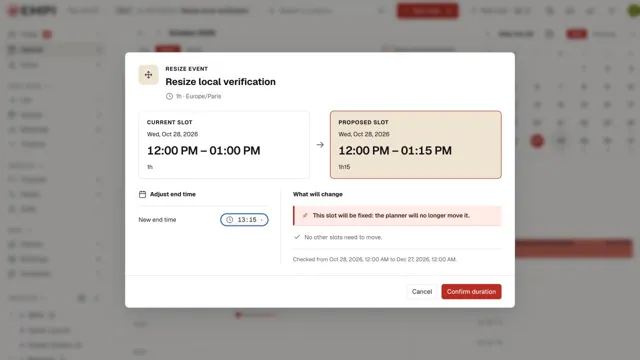
Adjust an event or task slot by dragging its lower edge, then review the new duration before saving.
You can now shorten or extend editable upcoming timed events and task slots directly in Agenda and the calendar sidebar. Drag the lower edge of a block to adjust its end in fifteen-minute steps, or focus the handle and use the arrow keys followed by Enter.
Every duration change opens a confirmation showing the current and proposed times and durations. Review any conflicts or changes to nearby task slots, choose the occurrence or series for recurring events, then confirm. Changing a task slot keeps the task estimate unchanged.
Clearer calendar move reviews
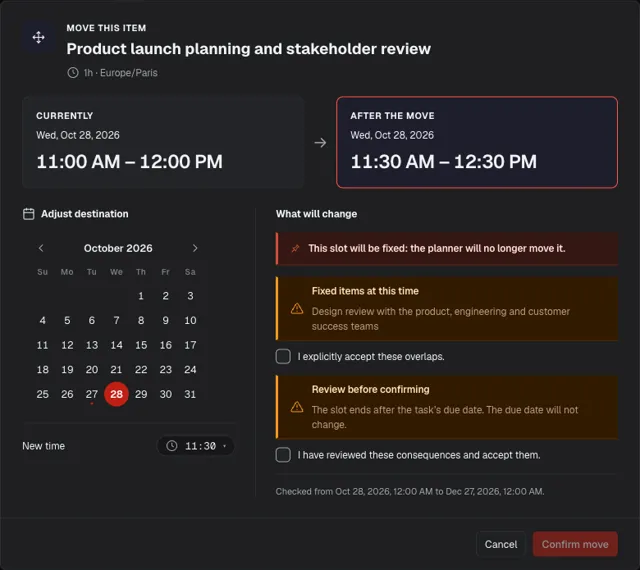
Read every consequence before confirming a move, with an explicit choice for recurring series.
Calendar move reviews now show complete warning text and conflict names, including long words. The dialog grows with its content; on smaller screens, the surrounding window scrolls vertically so every consequence and action stays reachable.
When you choose Entire series, Empi asks you to acknowledge that conflicts will not be checked. The move leaves neighbouring tasks and breaks in place, whether the series is finite or unending. Check the occurrences after the move.
Moving a single event or a task block keeps the existing conflict checks and consequence review.
More room for task titles
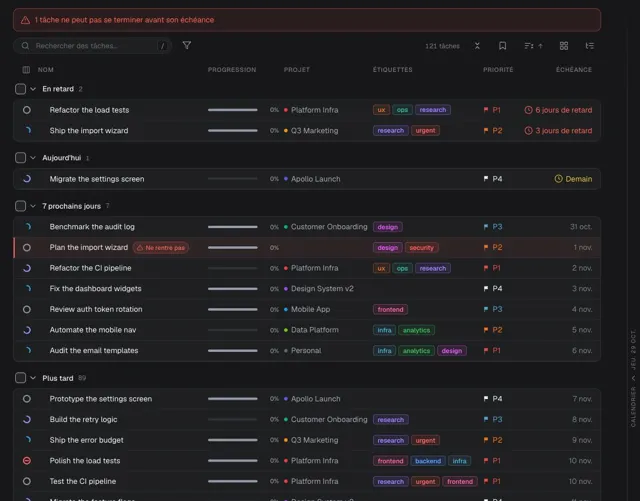
The task list gives titles more space by fitting metadata columns to their content.
Project, Labels and Priority columns now use the space their content needs, leaving more room for task titles. Column alignment stays consistent across groups and subtasks, including when you expand or collapse them.
The list continues to adapt when you open task details or resize the window. Enabled columns return as space becomes available, and label overflow counts stay up to date. Your saved column choices are preserved.
Edit booked meetings from your calendar
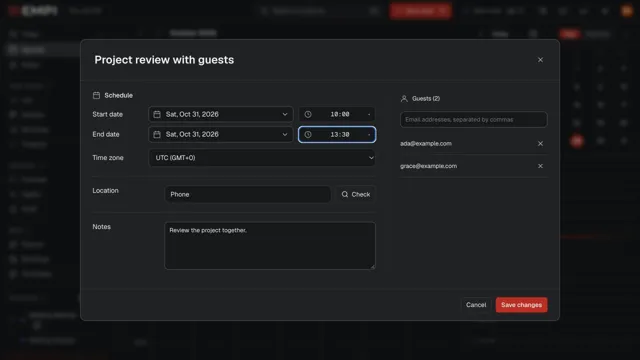
Invite more people, update meeting details and change the time of an existing booking directly in Empi.
Open a booking in Agenda or the calendar sidebar and choose Edit. Change its title, notes, location, guests or start and end times without recreating the booking or changing your public booking type.
When the new time overlaps an existing commitment, review the conflicts and explicitly confirm before saving. Your conference link, existing attendee responses and original booking information stay intact.
Saved changes appear across your calendar while synchronization finishes. Temporary synchronization failures retain those changes for retry.
Cleaner task suggestions in evening review
Task suggestions use status icons alone, leaving more room for task titles.
When recording time on another task from the evening review's Push dialog, search results now show the task's status icon followed by its title. Redundant status words such as To do, Blocked and Backlog no longer appear in the results.
Status labels remain available to screen readers. Task selection and time recording work as before.
Fixed
Free events leave room for your tasks
Accepted events marked free no longer block task scheduling, including all-day reminders.
Events marked Free now leave your time available even when you have accepted them. An all-day reminder no longer prevents Empi from scheduling tasks throughout that workday.
The same availability applies to your daily plan, task reservations and public booking slots. Accepted events marked Busy still protect your time, and declined invitations remain non-blocking.
Use the planner as usual to update your schedule. Your event availability and invitation responses stay unchanged.
A simpler sign-in page
The analytics preference no longer appears above the sign-in form.
The Product analytics switch and explanation have been removed from the sign-in page, including Clerk sign-in and password reset.
Sign in as usual. You can still change your analytics choice in settings; existing choices are preserved.
Keep task search within reach
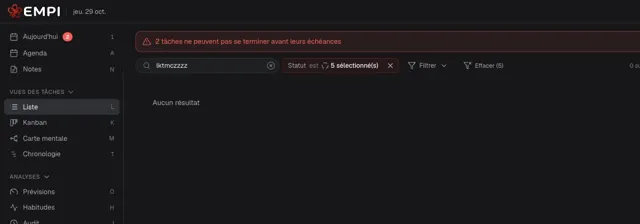
Search and clear filters without losing the toolbar or your place while typing.
List and Kanban now keep the search field and filters visible while results load, when no tasks match, and if a search fails. You can edit or clear the search without leaving the view, and keep typing without accidentally triggering application shortcuts.
Search in List, Kanban, Mind Map and Timeline waits 300 milliseconds after you stop typing before updating the results. Facet filters still apply immediately. Clearing the search, applying a preset or leaving the view cancels any pending text.