

What’s new in Empi
Thoughtful improvements to make room for what matters.
New
Share ideas and get private support
Suggest improvements, vote for community ideas, and contact support without leaving Empi.
Open Help and suggestions below keyboard shortcuts in the sidebar. Choose private support, propose an improvement, or browse ideas shared with the community. Your suggestions stay private until they are reviewed for publication.
You have 20 points across your workspaces: submitting a suggestion or adding an upvote uses one point. When an improvement is delivered, everyone who supported it gets their points back. You can also remove a vote to use that point elsewhere. Browse open ideas by status and see planned or completed delivery quarters when available.
Suggestion cards group status and delivery timing at the top, identify ideas you proposed, and give the description its own readable section. Pending ideas show their moderation status without an ambiguous Private badge or a premature delivery date. Delivery timing appears only on published planned, in-progress or delivered suggestions. Open a suggestion from its title, expand longer descriptions, or use the distinct edit and withdraw buttons on your pending ideas.
When a suggestion you submitted or upvoted changes status, an update appears in Empi's notification inbox. Open it to see that exact suggestion, including a delivered improvement. These progress updates stay inside the product: they do not send email, desktop system alerts, or mobile push notifications.
Private support keeps your account questions separate from community suggestions. Follow your existing requests, reply with formatted text, and add images or videos using your account's storage allowance. Responses stay in your private conversation, with an in-app notification when support replies. Paid plans receive priority support, also shown in the plan comparison.
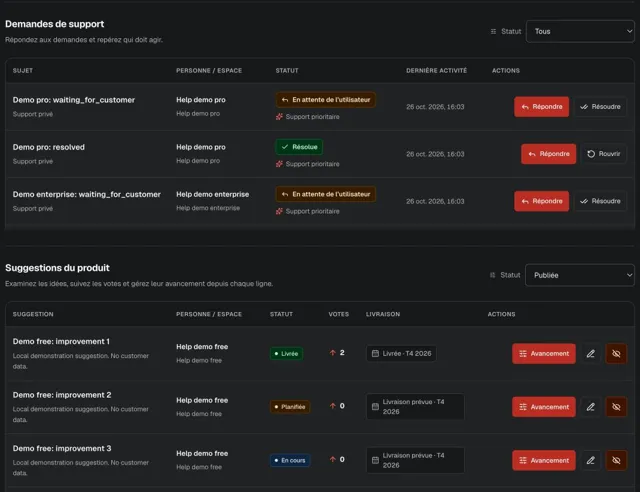
The support team now has separate tables for requests and suggestions, with clear status labels and direct reply, resolution, publication and progress controls. Each change requires a concise confirmation, and unfinished replies stay protected when that confirmation is cancelled.
Improved
A simpler sign-in experience
Sign in and set up Empi without an extra statistics preference.
The usage-statistics switch has been removed from sign-in, setup and account settings.
Empi now measures feature usage through aggregate counts instead of individual activity histories. These counts contain no task or note content and help guide product improvements.
Turn off commute time for an event
Keep a meeting on your calendar without reserving travel time when you do not need it.
You can now turn off an event's commute without removing its location or the meeting itself. The choice stays off after refreshing your calendar or recalculating travel times.
Open the event details, expand Transport, turn off Commute, then choose Save. Turn it back on and save to reserve travel time again.
For recurring events, transport changes apply to the whole series. The editor explains that scope before you save.
Clearer private support conversations
Find your full support history and reply from a compact conversation view.
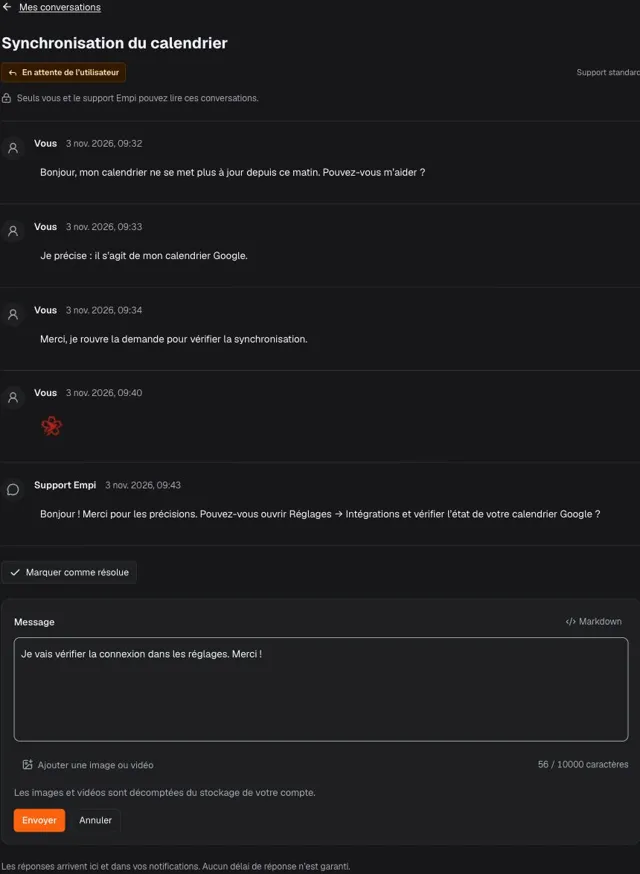
Private support now shows all your conversations, including older requests, without an inactivity filter. The compact list keeps the subject, status and last activity easy to scan.
Open a conversation to read the exchange, then choose Reply to write a message or attach an image or video. Choose New request from the list to start a conversation. Unsent drafts remain protected when you cancel or navigate away, and a failed send keeps your message ready to retry.
Cancel tasks without losing your work history
Stop planning work you no longer intend to finish while keeping its recorded time and daily reviews.
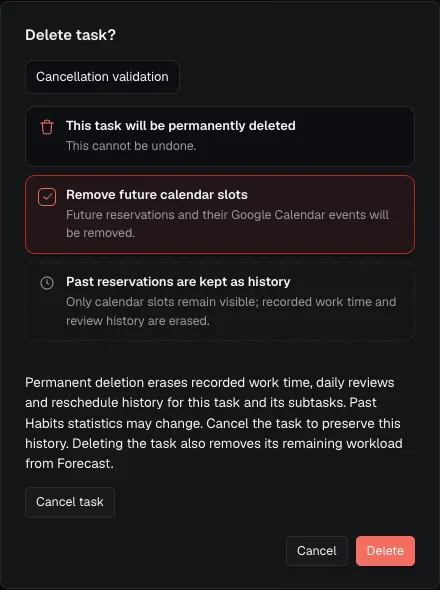
Use the new Canceled status when you decide to stop working on a task. Empi keeps its recorded time, daily reviews and reschedule history under your plan’s retention policy, removes its future reservations and excludes its remaining workload from Forecast.
Canceling a parent also cancels its active subtasks and preserves subtasks that are already finished. A canceled prerequisite still blocks dependent work until you resolve the dependency. Reopening a task does not recreate its previous bookings.
When you delete a task permanently, the confirmation now explains the history that will be erased and how this can change Habits statistics. Choose Cancel task from the same dialog to preserve that history instead. Free retains canceled tasks for 30 days; Pro and Enterprise retain them without a time limit.
A clearer private support inbox
Keep your conversations beside the exchange and use the available height to read and reply comfortably.
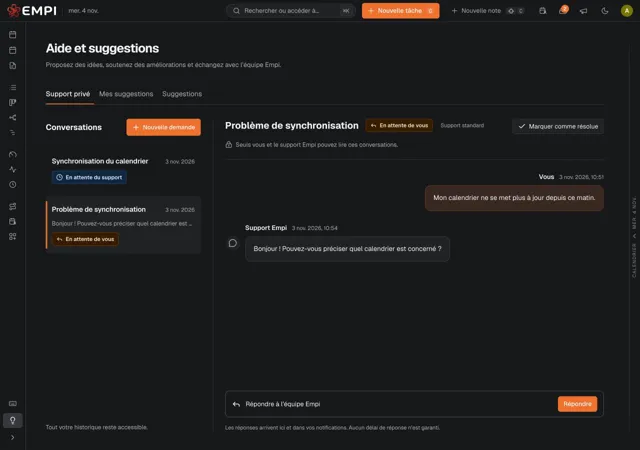
Private support keeps the conversation list beside the selected exchange, with distinct customer and support messages, status and last activity. It follows the same Help header and tabs as suggestions and uses the remaining application height for the conversation. On smaller screens, the list and selected conversation use separate views.
Choose Reply to open a compact editor with image and video attachments, or New request to start a conversation. Unsent drafts stay protected when you cancel or switch conversations, and a failed send keeps your message ready to retry. All your support history remains accessible.
Reserve time now, replan when you are ready
Save your chosen task slot immediately and decide when to rebalance the rest of your schedule.
Choose a time for a new or existing task in the calendar. Empi saves that exact slot and then offers Open Planner, so you can make several changes before reviewing and applying a new plan. Work displaced by your booking can be scheduled when you next run Planner.
If Auto planning needs to move other work, the new task is kept and Empi offers Planner. Your existing schedule stays in place until you choose to continue. Task bookings also keep their task color, including bookings stored in an external calendar.
If replacing planned work fails, the previous slots and task status stay intact. Work that has already started stays in place, including canceled work kept as history. Meetings and fixed task slots still require an explicit confirmation before you reserve overlapping time.
A more responsive Agenda
Agenda spends less time recalculating events when you resize panels or expand and collapse the calendar sidebar.
Day, week and month views now reuse their calendar calculations while the available space changes. Shared time formatting also reuses its configuration, reducing repeated work in Agenda, Today and the calendar sidebar.
Your existing calendar controls, filters and sidebar preferences work as before.
More room for your calendar, notes and bookings
Use Shift+S to show or hide the current sidebar, and collapse booking types just like calendars and note folders.
In Agenda, Notes and Bookings, press Shift+S outside text fields to show or hide the secondary sidebar. S continues to control the main navigation. Each view remembers its own choice.
Bookings now has the same collapse handle as Agenda. When space is limited, its sidebar opens temporarily over the content. Press Shift+S or Escape to close it, or click outside the panel. Your current selection and unsaved booking changes stay in place while you toggle the sidebar.
Clearer Timeline dependency arrows
Follow dependencies more easily with rounded turns and clearly connected endpoints.
Dependency arrows in Timeline now use rounded turns with clear horizontal entry and exit points. When task dates overlap, the arrow runs through the space between rows, making it easier to follow which task blocks another.
Open Timeline to see the updated connections. Dependency direction and critical-path colors are preserved.

Search guests across your connected accounts
Find guests across all your connected accounts and choose your preferred search scope.
Guest suggestions now search across all your connected accounts by default. To narrow a search, select This account only beside Guests in the event form.
Choose your default in Settings → Events with Search guests across all accounts. Changing the checkbox in an event form applies only to that form and keeps your saved preference unchanged.
Fixed
Capture notes with working drawings, checklists and Mac audio
Start drawing immediately, edit saved checklists, and recover microphone access on macOS.
Choose Draw in Notes to open the drawing canvas immediately. Confirm your drawing to return to a local preview, then save the note. Reopen it whenever you want to view or edit the drawing.
Checklist starts with a real checkbox ready for typing. Saved checklists open in the interactive editor and keep their item order and completion state.
On macOS, recording asks for microphone access and explains how to recover when access is denied. Open microphone settings from the recorder, allow the app, then retry. Missing or busy microphones have their own messages. The updated desktop app also records in a format its native player can play.
Task descriptions keep their compact spacing
Read and edit task descriptions without oversized margins squeezing the content.
Task descriptions keep their compact spacing in both reading and visual editing, including after switching back from Markdown. Long links and formatted text use the available width again.
The same correction applies to notes, templates and support messages that use the shared rich-text editor, in both light and dark themes.
See release updates and their screenshots again
What's new now refreshes your desktop app identity and displays published screenshots.
The What's new panel can recover from an older desktop identity kept in its cache. Restarting the app or choosing Refresh updates checks the installed version again, so compatible announcements can appear after an update.
Published screenshots also load in the web and desktop reader, including their enlarged view. Open What's new from the top bar to read the updates available for your version of Empi.
Help tabs follow the order of your choices
Keep your bearings when moving from the Help home page to support or suggestions.
Help tabs now follow the same order as the three choices on the Help home page: Private support, My suggestions, then Suggestions.
Open Help from the sidebar and choose any of the three cards. The tabs keep that order while highlighting the space you opened.
More reliable bookings, files and account changes
Booking changes, file ownership, calendar sync and account operations now handle retries and concurrent updates more reliably.
Bookings now check calendar availability, time zones and daylight-saving changes more consistently. Retrying a booking or a payment checkout preserves the original operation, helping prevent duplicates and conflicting updates.
Files remain accessible when converting notes or transferring tasks, and shared copies stay available when another copy is deleted. Storage and content limits are checked consistently when several updates happen at once. File cleanup also respects the confirmation required before permanently deleting task history.
This update also strengthens sign-in and workspace access checks, improves calendar synchronization, and makes account exports and deletion more reliable. These improvements apply automatically; no settings need to change.
Emails signed by Empi
Product email footers now identify the sender using the Empi brand.
Product emails now use Empi's brand in the footer, alongside the existing business details and legal links. The same wording appears in both HTML and plain-text messages, across all supported languages.
Your notification preferences and unsubscribe links continue to work as before.