

What’s new in Empi
Thoughtful improvements to make room for what matters.
New
Note reminders in your calendar
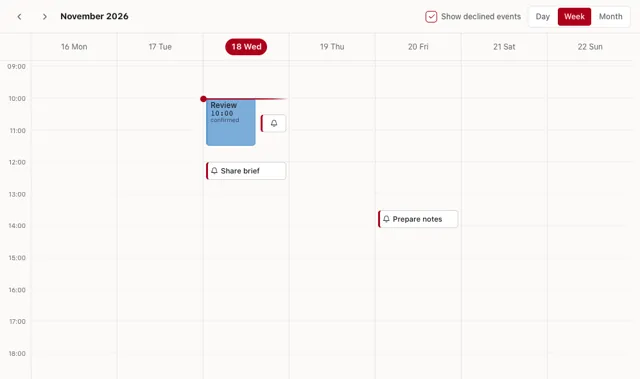
Schedule a note reminder from Agenda or the calendar sidebar, then see it alongside your events.
Select a time in Agenda or the calendar sidebar to create a note with a reminder or pick an existing note. The note opens with the selected time already filled in, so you can review it and save. Bells in the picker reflect each note's color.
See scheduled reminders in Agenda and the sidebar. Use the Note reminders filter to show or hide them, or click a reminder to open its note.
The note properties pane now has a resizable divider and a compact reminder editor. Smart Reserve uses the same inline layout and groups the date, start time, and duration when you choose a time manually.
Improved
Getting started on web and mobile
New onboarding tasks guide you through the app you are using, with updated screenshots and shared progress.
The six getting-started tasks now guide you through the controls on web or mobile. Updated screenshots show where to tap or click. On the web, the table of contents takes you straight to the exercise you want to try.
In the mobile app, the task description appears above Properties. Long descriptions start with a preview. Tap to read the whole task.
You can start a lesson on one device and finish it on another. Your progress follows you. The revised lessons apply when onboarding tasks are first created.
Your plan adjusts when you accept a meeting
Empi makes room for accepted meetings by moving overlapping automatic task blocks into free time on the same day.
When you accept a calendar invitation marked Busy, Empi makes room in today's plan. It also adjusts tomorrow's plan after you've completed today's Evening Routine. This works when you respond in Empi or when your connected Google Calendar, Outlook, or CalDAV calendar syncs.
Empi keeps usable portions of overlapping automatic task blocks in place and moves the remaining time into free slots that day. Blocks you scheduled by hand or already started stay in place. If there isn't enough room, your notification inbox tells you how much time still needs to be scheduled.
A cleaner calendar toolbar
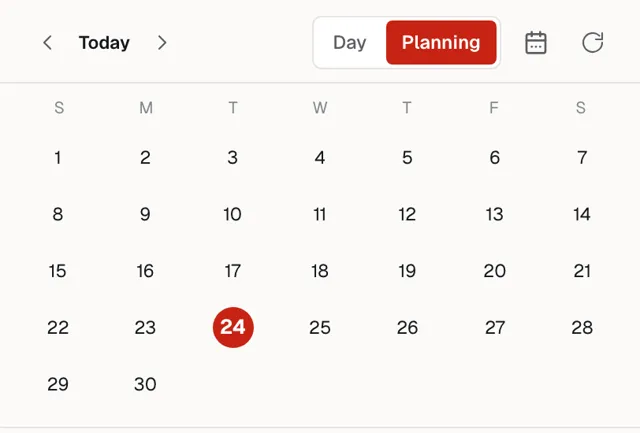
The calendar controls stay on one line, with a separate button to sync events.
Click Today to return to the current day. To pull in calendar updates while keeping your place, click the circular arrow on the right.
The date, view switcher, mini-calendar toggle, and sync button stay together on one line as you resize the sidebar.
See the current time on colored calendar events
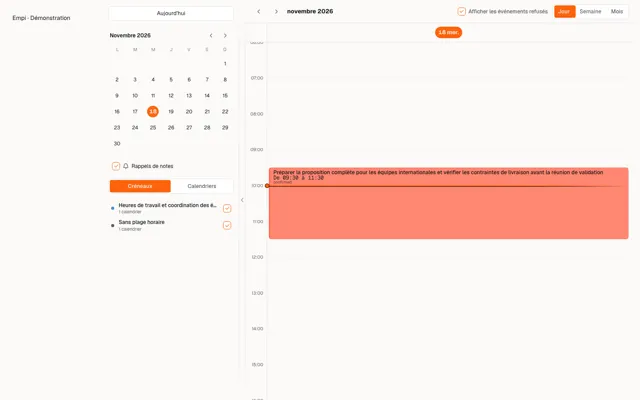
The current-time marker is easier to spot in Agenda and the calendar sidebar.
In Agenda’s Day and Week views and in the calendar sidebar, a thin dark edge helps the current-time line stand out on events with a similar color. The edge fades with the line, and the dot has a matching outline.
See calendar activities in your weekly capacity
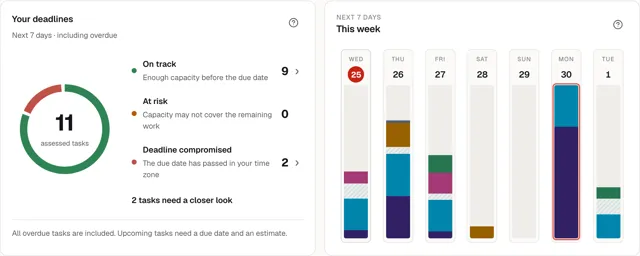
Today shows meetings, focus time, and custom calendar activities in one bar per day.
Today adds timed custom calendar activities, such as sports or classes, to the same daily bars as meetings and focus time. Small segments are grouped as Other activities, and the day details show each event by name with its start time and duration.
Hover over a day or focus it with the keyboard to see the details on desktop. On touch screens, tap a day to open its details below the chart. A red outline marks an over-capacity day, and its Summary gives the exact amount.
See your planning habits by time slot
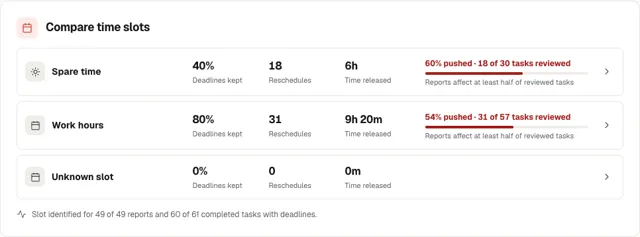
Compare deadlines kept, reschedules, and time released during work hours, spare time, and your custom time slots.
Open Habits for the big picture, then select a time slot to see its weekly trends, reschedule reasons, and calendar activity by event type. The reporting period stays the same as you switch tabs.
A reschedule follows the block where the work was originally planned. Time released follows the blocks that actually opened up. When there is enough review history, you can compare the share of reviewed tasks that were pushed in each slot.
Habits also suggests one practical change based on what you recorded. If the next step was unclear on several tasks, try writing down the first action before your next session.
A faster, clearer Agenda
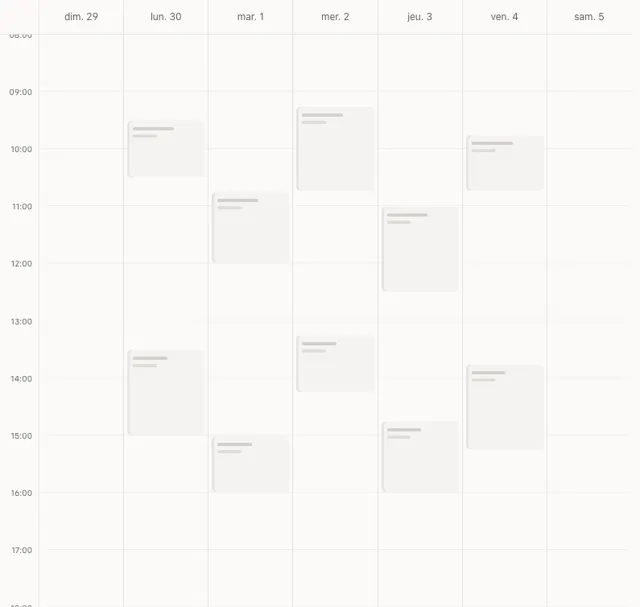
The calendar grid stays visible while it loads, and Google Calendar events appear before attendee names finish loading.
When you switch to a day, week, or month that is still loading, the Agenda keeps the grid in view and shows subtle gray placeholders. The placeholders stay still if you use reduced motion.
Google Calendar events appear as soon as their event data is ready. Meeting details show attendee email addresses while Empi looks up missing names in Google Contacts, then update as the names arrive.
A clearer Today overview
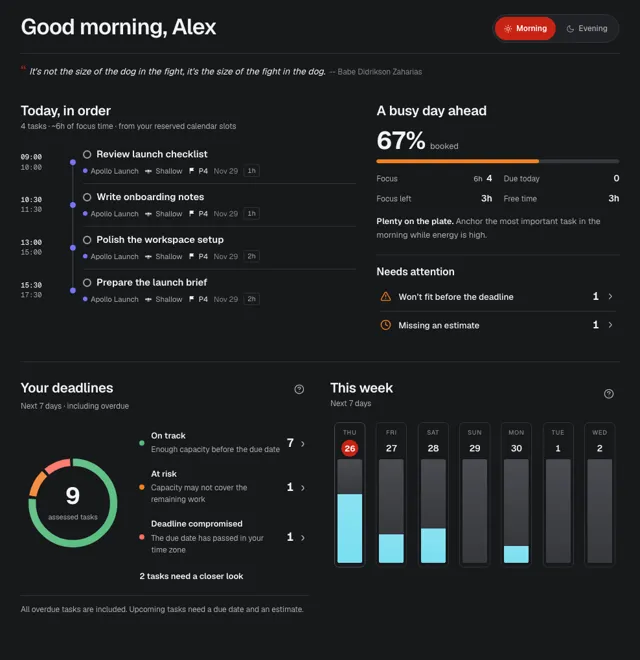
See your tasks in time order, check how much of the day is booked, and open planning issues directly in List.
Start with the tasks on your schedule and see how much time is already booked. The daily summary shows how much focus time you have left.
Under Needs attention, select an alert to open List with the relevant tasks already filtered. You can quickly find tasks that need an estimate or are unlikely to fit before their deadline.
The deadline ring and weekly capacity bars sit below the daily overview. Hover over a deadline segment or focus it with the keyboard to highlight its matching legend row.
Fixed
Booking notifications keep you in your current view
Open a booking from the notification bell and keep your place in Empi.
Click a booking notification to open the booking details over your current screen. When you close the details, you can pick up where you left off, with your task selection or Agenda view still in place.